
We can write a BASH Script to print out the current CPU frequency and temperature on Raspberry PI.
#pi@raspberrypi:~ $ cat ./cpu_freq.sh
#!/bin/bash

temp=`head -n 1 /sys/class/thermal/thermal_zone0/temp | xargs -I{} awk "BEGIN {printf \"%.2f\n\", {}/1000}"`

echo $((`cat /sys/devices/system/cpu/cpu0/cpufreq/scaling_cur_freq`/1000)) MHz, $temp degrees
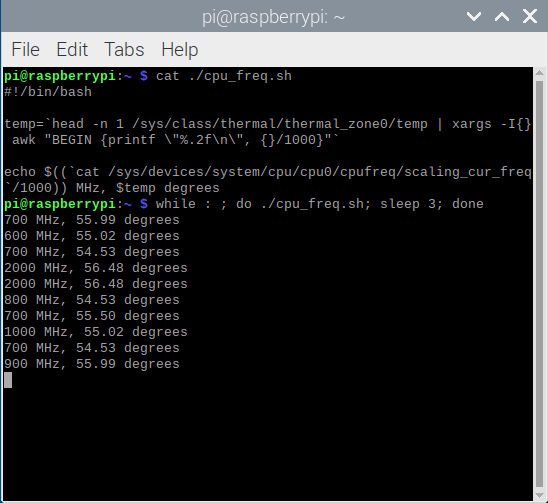
Then, we can simpily run the following BASH command to monitor the CPU frequency and Temperature for Raspberry PI every few seconds:
# monitor interval: every 3 seconds
while : ; do ./cpu_freq.sh; sleep 3; done
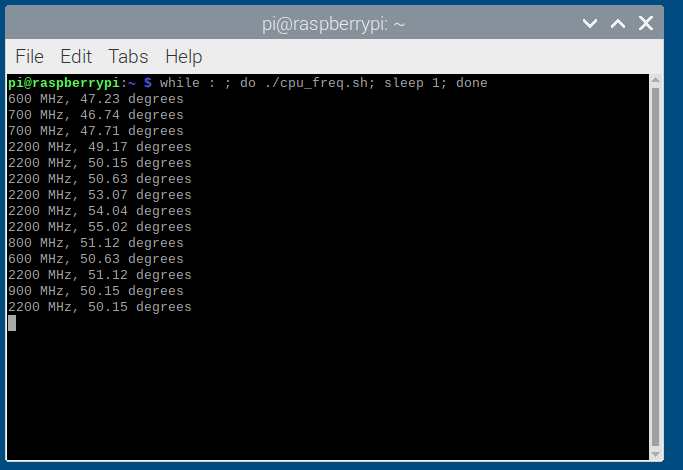
This is super useful if you are overclocking your raspberry PI e.g. 4B model you can tweak/overclock the ARM CPU to 2147 MHz and GPU to 750 MHz. You can modify the /boot/config.txt. Latest Raspberry PI models will automatically throttle the CPU if temperature gets too hot.
#uncomment to overclock the arm. 700 MHz is the default.
over_voltage=6
arm_freq=2147
force_turbo=1
gpu_freq=750
The `force_turbo` will enable CPU to run at maxium frequency even it is idle. After overclocking, you may also need to reduce the CPU temperature by plugin a heatsink or external Fan.
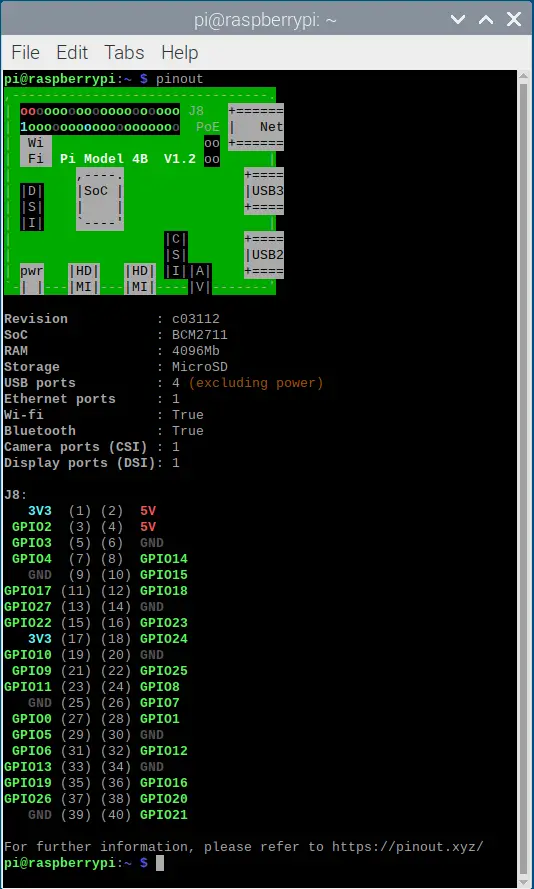
Most Raspberry PI External Fans are on 5V power – which you can see which two pins are for this by using the Raspberry PI utility pinout.
Overclocking Raspberry PI 4 to 2147MHz
Just make sure you have a good cooling for CPU before you overclock the Raspberry PI ARM CPU.
Raspberry Pi
- Turn Your Raspberry Pi into a Family Network Drive: 2TB WD Hard Drive Setup for Kids' Macs
- The Latest Raspberry PI 5 Comes with Up to 16GB of RAM, but It's a Bit Pricey
- Turning a Dusty Raspberry PI into a Home Server for Blockchain Monitoring
- Visiting The Raspberry Shop in Cambridge UK
- Overclocking ARM CPU of Raspberry PI 4 and 400 with Temperature Cooling Measures
- BASH Script to Monitor the CPU Frequency and Temperature on Raspberry PI
- All-In-One Raspberry PI 400 Kit - Personal Computer Kit with Raspbian OS
- How to Monitor the CPU Temperature of Raspberry PI using Python Script?
- Use PHP Script to Monitor Temperature and Uptime for Raspberry PI in the Browser
- Review: Raspberry PI B Plus Model
- Different Approaches to Reduce the CPU Temperature of Raspberry PI
- Test SD Card Speed on Raspberry PI
- Remote Desktop Connection for Raspberry PI (xrdp)
- Using a external USB cooler fan to drop temperature of Raspberry PI (Model B) from 51 degrees downto 40 degrees for just ten minutes
- How to Get the CPU Temperature on Raspberry PI using BASH Script?
- Apache Server (PHP + MySQL) on Raspberry PI
–EOF (The Ultimate Computing & Technology Blog) —
Last Post: Algorithms to Determine a Ugly Number/Integer
Next Post: Teaching Kids Programming - QuickSort Algorithm Simply Explained (Python)