This article explains how disabling Microsoft Edge’s Startup boost and background extensions can make Windows feel lighter and more responsive. It covers how these settings affect startup load, memory usage, CPU wake-ups, background processes, and laptop battery life. It also explains why disabling Edge Update services may reduce background activity but is not recommended long term, because browser updates are important for security.
Windows Feeling Slow? Turn Off These Microsoft Edge Background Settings
Make Windows Faster by Disabling Edge Startup Boost and Background Apps
Why Disabling Edge Background Processes Can Make Windows Feel Faster
How to Make Windows Lighter by Turning Off Edge Background Features
Microsoft Edge Settings That May Be Slowing Down Your Windows PC
Speed Up Windows by Reducing Microsoft Edge Background Activity
Should You Disable Edge Startup Boost? A Practical Windows Performance Tip
Make Windows Cleaner and Faster: Start with These Edge Settings
Reduce Windows Background Load by Changing These Edge Settings
A Practical Guide to Making Windows Feel Faster with Edge Settings
Why Edge Startup Boost May Be Slowing Down Your PC
Turn Off These Edge Settings for a Cleaner Windows Startup
Microsoft Edge Background Apps: Useful Feature or Hidden Performance Cost?
Simple Windows Performance Tweak: Disable Edge Background Activity
Make Your PC Quieter and Lighter by Reducing Edge Background Processes

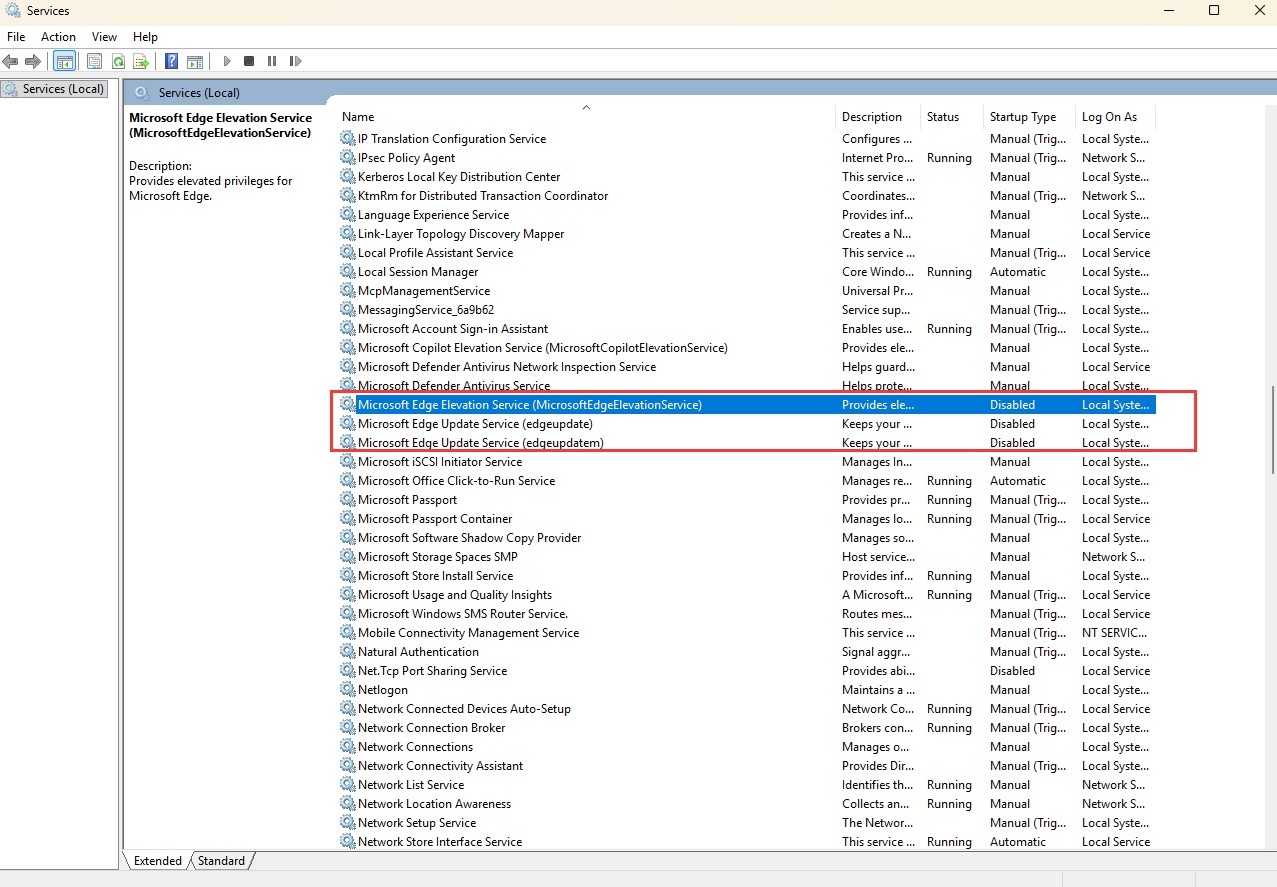
Disable Edge Services

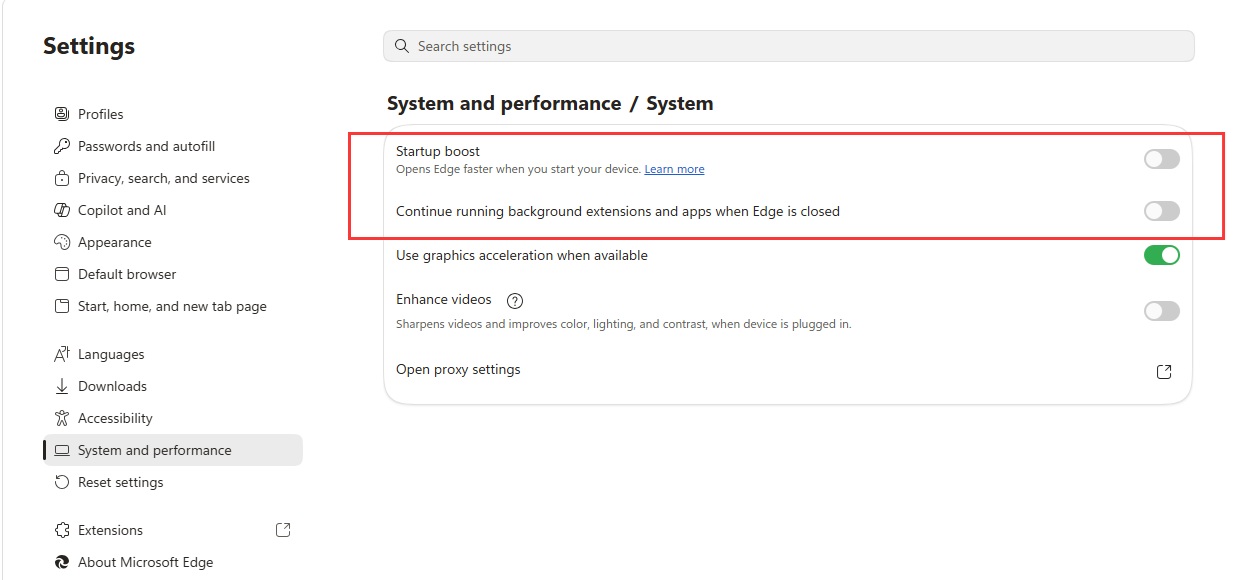
Disable Edge Starter Boost
Can Disabling Edge Background Startup Make Windows Faster?
Many people feel that Windows gets slower over time. In many cases, it is not necessarily because Windows itself has become slow, but because more and more applications are running quietly in the background. A browser is one typical example.
The two screenshots show several Microsoft Edge-related background behaviors.
Two Edge Settings Worth Checking
In Microsoft Edge, you can go to:
Settings → System and performance → System
There are two key options:
- Startup boost
- Continue running background extensions and apps when Edge is closed
The first option is designed to make Edge start faster. The second option allows Edge extensions and apps to keep running even after the browser window is closed.
From a performance optimization point of view, both options are worth reviewing and, for many users, worth turning off.
Edge-related Services in Windows
In Windows Services, opened through services.msc, you may also see several Microsoft Edge-related services, such as:
- Microsoft Edge Elevation Service
- Microsoft Edge Update Service (edgeupdate)
- Microsoft Edge Update Service (edgeupdatem)
These services are mainly related to Edge privilege elevation, background maintenance, and automatic updates.
If you disable some background startup, background running, and automatic update-related behavior, Windows may feel slightly lighter in some situations.
But let’s be clear: this is not magic optimization. It simply reduces background processes and scheduled tasks.
1. What Is Startup Boost?
In Edge, Startup boost means that Windows can preload some Edge-related processes even before you manually open the browser.
The idea is simple: when you actually click the Edge icon, the browser opens faster because part of it has already been loaded in advance.
That sounds useful, but there is a cost:
Edge may consume some memory, CPU time, and background resources before you even use it.
If your PC has plenty of RAM and a powerful CPU, the impact may be tiny. But if your machine has limited resources, or you prefer a cleaner startup environment, turning it off is reasonable.
After turning it off, you may notice:
- Windows loads fewer Edge background components after startup;
- Memory usage may be slightly lower;
- There are fewer background processes;
- Edge may take slightly longer to open the first time.
This is a classic trade-off:
You get a cleaner Windows startup, but Edge cold startup may become slightly slower.
2. What Does “Continue Running Background Extensions and Apps When Edge Is Closed” Mean?
This option is even more worth disabling for many users.
Continue running background extensions and apps when Edge is closed means:
Even after you close the Edge window, some extensions, web apps, or notification services may continue running in the background.
For example:
- Browser extensions may keep running;
- Some web apps may continue receiving notifications;
- PWA apps may stay active in the background;
- Edge-related processes may not fully exit.
This can be useful for people who depend on web notifications, Teams Web App, Outlook Web App, or certain browser extensions.
But for many normal users, this option simply means Edge only appears to be closed, while some parts of it are still running in the background.
Turning it off has direct benefits:
- Edge processes are more likely to fully exit after closing the browser;
- Background memory usage can be reduced;
- Extensions are less likely to keep running silently;
- The system stays cleaner when idle;
- Laptop battery life may improve slightly.
My suggestion is simple:
If you do not rely on Edge background notifications, turn this option off.
3. Why Can These Settings Make Windows Feel Faster?
Windows performance is not only about CPU speed. It is also about how many small background processes keep waking up and interrupting the system.
When too many applications run in the background, several problems appear.
First, They Use Memory
Browsers are memory-heavy applications. Even background browser processes can use tens or hundreds of megabytes of RAM.
If your PC only has 8 GB or 16 GB of memory, and you are also running applications such as Teams, Outlook, OneDrive, VS Code, Docker, WSL, and many browser tabs, every unnecessary background component matters.
Reducing background processes can make the system feel lighter.
Second, They Wake Up the CPU
Many background programs do not constantly use high CPU. Instead, they wake up occasionally.
For example, they may check for updates, sync status, receive notifications, or scan extension states.
Each action may be small, but when many background programs do this together, the system is no longer truly idle.
You may notice symptoms such as:
- The fan spins occasionally;
- The laptop becomes warm;
- Disk and CPU activity stays busy after startup;
- The system occasionally feels less responsive.
Third, They Add Startup Load
Startup boost works by preloading Edge components after Windows starts.
That means Windows needs to do more work after you log in.
If your machine already has many startup programs, such as OneDrive, Teams, antivirus software, driver utilities, and cloud sync tools, adding browser preload on top of that can make the first few moments after login busier.
Disabling Startup boost reduces that startup pressure.
Fourth, They Reduce Background Extension Activity
Browser extensions are an often-overlooked source of performance overhead.
Some extensions may:
- Monitor web pages;
- Inject scripts;
- Block ads;
- Sync data;
- Collect status information;
- Connect to remote servers in the background.
If Edge allows extensions to continue running after the browser is closed, those extensions may still consume resources.
So disabling background extensions and apps is not just a performance optimization. It also reduces background complexity.
4. Should You Disable Edge Update Services?
The screenshots also show several Edge-related services being disabled:
- Microsoft Edge Elevation Service
- Microsoft Edge Update Service (edgeupdate)
- Microsoft Edge Update Service (edgeupdatem)
These services are mainly related to Edge updates, privilege elevation, and maintenance.
From a performance point of view, disabling these services may reduce some background update checks and maintenance tasks.
However, this needs a serious warning:
I do not recommend disabling Edge Update services long term.
The reason is simple: your browser is one of the biggest security entry points on your computer.
You use it to visit websites, download files, log in to accounts, and open links from emails. If the browser is not updated in time, you may miss important security patches.
Saving a tiny amount of background resource is usually not worth weakening browser security.
Settings I Recommend Disabling
These two options are generally safe and reasonable to turn off:
- Startup boost
- Continue running background extensions and apps when Edge is closed
They mainly affect background activity and startup behavior. For most users, turning them off has relatively low risk.
Services I Do Not Recommend Disabling Long Term
I would be much more careful with these services:
- Microsoft Edge Update Service (edgeupdate)
- Microsoft Edge Update Service (edgeupdatem)
Only disable them if you fully understand the consequences and you are willing to update Edge manually and regularly.
Otherwise, trading browser security for a tiny performance gain is not a good deal.
5. A Better Way to Optimize Windows
Do not turn Windows optimization into “disable every service you see.” That is a common mistake.
A better approach is:
Disable unnecessary background behavior first, then observe whether the system becomes lighter.
A more sensible priority list would be:
- Disable Edge Startup boost;
- Disable Edge background extensions and apps after closing the browser;
- Remove browser extensions you do not need;
- Review Windows startup apps;
- Only then consider service-level changes;
- Be cautious with browser update services.
This is especially important on work computers.
Do not randomly disable services just because the system looks cleaner afterward. Company policies, security tools, and update mechanisms may depend on background services. Randomly disabling them may feel good in the short term, but it can create problems later.
6. Who Should Turn These Options Off?
These settings are worth turning off if:
- Your PC does not have much memory;
- Windows feels slow after startup;
- You do not use Edge often;
- You mainly use Chrome or Firefox;
- You do not rely on Edge background notifications;
- You want a cleaner background environment;
- You want your laptop to run cooler and possibly save some battery.
They may not be suitable for you if:
- You heavily use Edge;
- You rely on Edge extensions running in the background;
- You use Edge PWA apps;
- You depend on web notifications;
- You do not want to manually check browser updates;
- Your company manages browser and system policies.
7. Summary
Turning off Edge Startup boost and background extensions and apps after closing Edge can make Windows cleaner and slightly lighter.
The main benefit is not that your CPU becomes faster. The benefit is reducing:
- Startup preloading;
- Background processes;
- Memory usage;
- Extension background activity;
- Unnecessary system wake-ups.
This kind of optimization will not turn a slow computer into a high-end workstation, but it can reduce background noise and make Windows feel more responsive and more predictable.
However, be careful with Edge Update services. Browser updates are part of your security defense. I do not recommend disabling them long term just to save a small amount of system resource.
A safer approach is:
Disable background startup and background extension activity, but keep browser automatic updates enabled.
Good Windows optimization is not about blindly disabling services. It is about understanding the cost of each background behavior and only turning off what you truly do not need.
Windows Tools/Tips
- Make Windows Faster by Disabling Edge Startup Boost and Background Apps
- When Your PC Slows Down, It Might Be Time for an Update
- Use DirectX Diagnostic Tool (dxdiag) to View System Information
- Enabling the Debug Console for WSL2 (Windows Subsystem for Linux)
- Hot Weather Causes Intel CPU Throttle and NVidia GPU Crashes on Windows 11 (Blue Screen)
- Two Windows Tips: Turn Off Delivery Optimization and Tweak Privacy Settings
- How to Enable the "God Mode" of Control Panel on Windows?
- Boost System Performance By: Switching to Best Performance Power Mode at Power & Battery on Windows OS
- Laptop Battery Power Drained But Failed to Sleep on Microsoft Windows Surface Studio Pro
- How to Fix a Slow/Incorrect Clock on Windows?
- The Ubuntu Sub System (New Bash Shell) in Windows 10
- How to Lock out (WorkStation) on Windows?
- How to Use Windows 10 - Storage Space to Combine Multiple Physical Harddrives?
- From Windows 1.0 to Windows 10
–EOF (The Ultimate Computing & Technology Blog) —
Last Post: A Tiny Logic Puzzle About Truth and Lies
Next Post: How to Use WordPress Search to Display Relevant Posts?